Impacts, reactions, glass, water and hero entrances — slow-motion prompts crafted by a VFX artist, plus the editing method for John Wick-style speed ramps.
50
Prompts
6
Categories
100%
Free
#001 · Impact
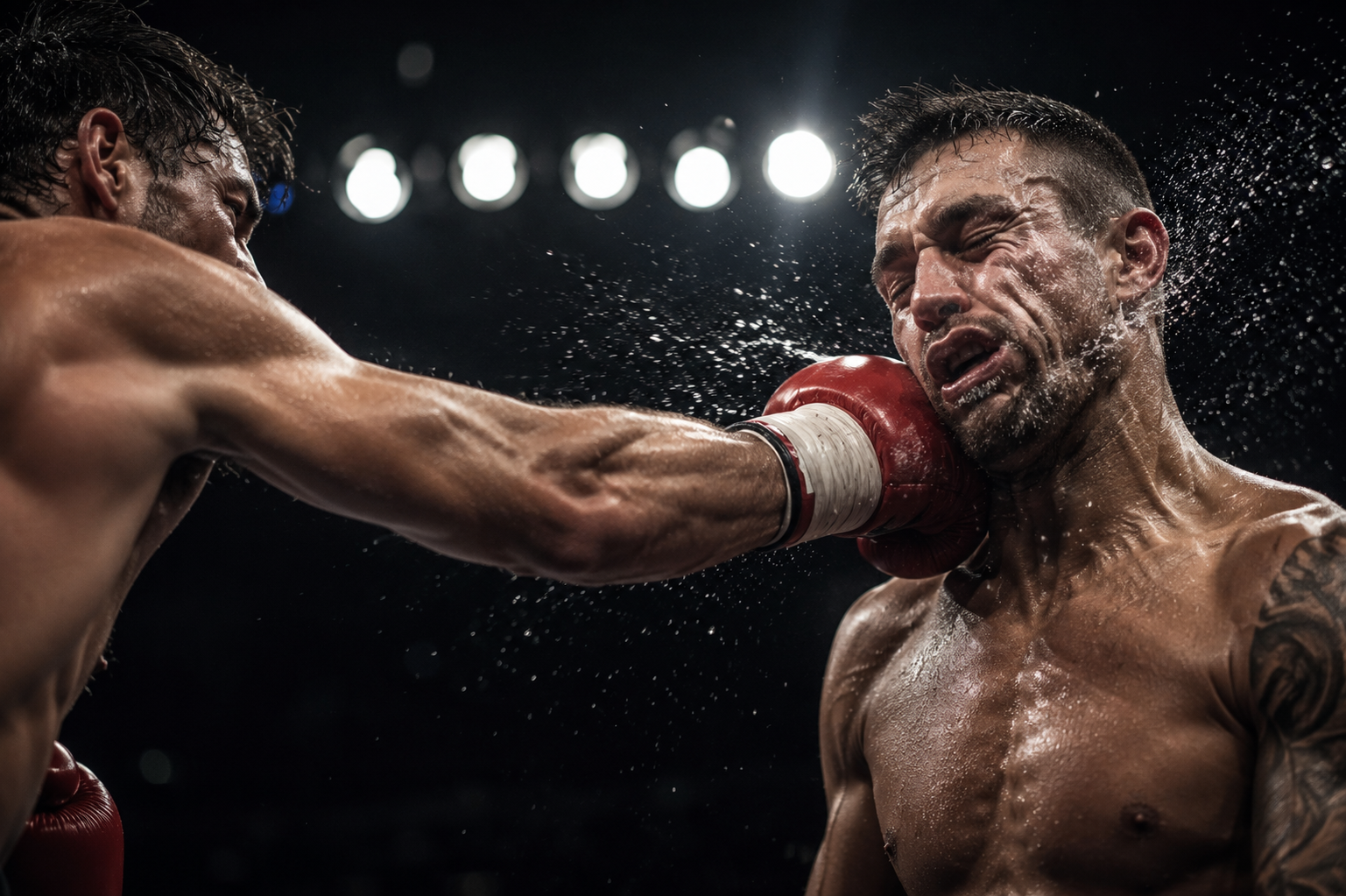
Slow motion, 85mm, static: a boxer's punch connecting with an opponent's jaw — the cheek rippling in a wave from the impact point, sweat droplets ejecting in an arc that catches the ring lights, the head beginning its slow turn. One impact only, dark arena background, hard top light, gritty high contrast.
✦ Why this works
Cheek ripple is the classic slo-mo money detail
Single impact keeps AI physics coherent
Sweat arc adds free particle drama
▶ Best for
Fight scene climaxes
Sports promos
Speed ramp cut-ins
#002 · Impact
Slow motion close-up, 100mm: a fist blocking a strike — two forearms colliding, the shockwave shivering through both sleeves, dust shaking off the fabric into a shaft of side light. The block holds, muscles trembling under the strain. Dojo interior, warm window light, cinematic grain.
✦ Why this works
Block-and-hold is a stable two-body contact
Fabric dust makes the force visible
Trembling hold extends the drama
▶ Best for
Martial arts sequences
Training montages
Defensive beats
#003 · Impact
Slow motion, 50mm, low angle: a spinning kick sweeping through frame — the boot passing inches from the lens, laces whipping, a spray of sweat trailing the arc, background gym lights streaking behind the rotation. The kick completes and exits frame. Single rotation only.
✦ Why this works
Near-lens pass delivers visceral proximity
Single rotation avoids limb-tangle artifacts
Trailing sweat traces the motion path
▶ Best for
Action hero beats
Martial arts showcases
Trailer inserts
#004 · Impact
Slow motion, 85mm: a wooden staff striking a training dummy — the wood flexing visibly along its length before snapping straight, the dummy's head whipping sideways, splinters and chalk dust erupting from the contact point in the backlight.
✦ Why this works
Wood flex is a beautiful slow-motion physics detail
Inanimate target removes face-consistency risk
Backlit dust makes impact readable
▶ Best for
Training sequences
Weapon practice beats
Period action scenes
#005 · Impact
Slow motion insert, 100mm macro: knuckles meeting a heavy bag — the leather deforming in a deep crater around the fist, chains above jerking taut, dust ejecting from every seam of the bag in the hard gym light. The bag begins its slow swing away.
✦ Why this works
Bag crater shows force without a second actor
Chain jerk adds mechanical cause-and-effect
Macro framing is AI's safest action zone
▶ Best for
Boxing and training content
Gym brand videos
Rhythm inserts
#006 · Impact
Slow motion, 35mm: a body hitting the mat — back-first landing, the canvas dust blasting outward in a radial ring, arms bouncing once, ring ropes vibrating in the background. Impact and settle only, overhead harsh light, desaturated sports grade.
✦ Why this works
Radial dust ring is the money frame
Back-first landing is a clean single event
Rope vibration extends the impact through the frame
▶ Best for
Takedown beats
Wrestling and MMA content
Defeat moments
#007 · Impact
Slow motion, 85mm: a slap across a face in profile — the head turning with the blow, a single earring swinging violently, hair fanning across the frame, a fine mist of spit catching the window light. Melodrama staged as pure physics, warm interior, shallow focus.
✦ Why this works
Profile framing keeps the face stable through the turn
Earring and hair carry the motion story
Classic drama beat every editor needs
▶ Best for
Drama confrontations
Soap and serial content
Emotional turning points
#008 · Impact
Slow motion, 50mm: a shoulder barge through a wooden door — the door bursting off one hinge, splinters spiralling toward the lens, light from the room beyond flooding through the widening gap around the silhouetted figure.
✦ Why this works
Breakaway door is soft destruction AI completes
Light-flood reveal doubles as a transition
Silhouette hides mid-action face risk
▶ Best for
Entrance beats
Action breach moments
Thriller reveals
#009 · Impact
Slow motion, 100mm: a cricket ball striking the bat's sweet spot — the willow flexing, a halo of dust and rosin exploding off the blade, the ball already deforming and rebounding, stadium lights flaring behind. Contact frame held long, then release.
✦ Why this works
Bat flex plus ball deformation is peak sports slo-mo
Rosin halo is a spectacular light-catcher
Deep Indian audience resonance
▶ Best for
Cricket content
Sports promos
Victory montages
#010 · Reaction
Slow motion close-up, 85mm: a fighter's face as a punch whistles past — eyes tracking the fist, pupils contracting, a bead of sweat lifting off the brow and floating past the ear, jaw tightening as the miss registers. The dodge is over; the face tells it.
✦ Why this works
Reaction carries the action without contact physics
Floating sweat bead is the signature slo-mo detail
Pupil and jaw micro-motions read at 85mm
▶ Best for
Dodge and near-miss beats
Character-driven action
Speed ramp reaction cuts
#011 · Reaction
Slow motion, 100mm: eyes widening mid-fall — lashes separating, reflection of the ground rising in the cornea, hair beginning to float weightless around the face, mouth opening for a breath that hasn't arrived yet.
✦ Why this works
Cornea reflection tells the story inside the eye
Weightless hair sells the fall without showing it
Suspended breath is pure tension
▶ Best for
Fall and stunt beats
Dream sequences
Trailer moments
#012 · Reaction
Slow motion, 85mm: a goalkeeper's face during the dive — cheeks rippling from g-force, eyes locked on an off-screen ball, grass blades and water spray drifting across the foreground, jaw set in full commitment. Face only; the save happens off-screen.
✦ Why this works
G-force cheek ripple is honest physics drama
Off-screen ball avoids ball-tracking artifacts
Foreground spray layers the frame
▶ Best for
Football content
Effort and commitment beats
Sports ads
#013 · Reaction
Slow motion, 100mm: a woman's face as glass shatters off-screen — a flinch travelling across her features in sequence: eyes shutting, brow knotting, shoulders rising into frame, a strand of hair swinging across her cheek from the turn.
✦ Why this works
Sequenced flinch turns one moment into an arc
Off-screen event lets the face own the frame
Hair swing adds motion to a static head
▶ Best for
Horror and shock beats
Explosion reactions
Drama punctuation
#014 · Reaction
Slow motion, 85mm: a man's face lit by an approaching explosion glow — warm orange light blooming across his features from frame-left, eyes reflecting a fireball we never see, hair and collar beginning to lift in the pressure wave. No explosion shown; only its arrival on the face.
✦ Why this works
Light-on-face implies the unfilmable safely
Growing glow is a simple readable event
Collar lift sells the pressure wave
▶ Best for
Action hero beats
Disaster reactions
Poster-frame moments
#015 · Reaction
Slow motion two-shot, 50mm: two teammates turning toward each other mid-celebration — the exact frame their eyes meet, arms rising, a wave of stadium confetti drifting between them, mouths opening into a roar we hear later.
✦ Why this works
The eye-meet frame is the emotional peak of victory
Confetti layer decorates without complexity
Roar-delay is a classic sound design setup
▶ Best for
Victory beats
Team sports content
Emotional payoffs
#016 · Reaction
Slow motion, 100mm macro: a hand releasing its grip — fingers uncurling one by one, the object beginning its weightless drop out of the bottom of frame, tendons relaxing under the skin. Surrender told entirely in one hand.
✦ Why this works
Finger-by-finger release is granular drama
The unnamed falling object works for any story
Macro hands are AI's most reliable canvas
▶ Best for
Defeat and letting-go beats
Emotional metaphors
Sequence enders
#017 · Reaction
Slow motion, 85mm: a child's face at a first firework — the bloom of colour arriving on their upturned features, eyes enormous, mouth falling open, warm reds and golds washing over in sequence as unseen fireworks change colour above.
✦ Why this works
Colour washes narrate the sky without showing it
Wonder is the most shareable slo-mo emotion
Upturned face framing is stable and safe
▶ Best for
Festival content
Family and Diwali beats
Feel-good ads
#018 · Debris
Slow motion, 85mm, static: a window shattering from a thrown ball — the pane crazing into a white web for one suspended instant, then collapsing into a curtain of cubes that tumble toward the lens, each fragment flaring in the sunlight. Ball already gone; only the aftermath in glass.
✦ Why this works
Craze-then-collapse is a two-act spectacle
Tempered cubes render beautifully in slow motion
Sunlit fragments are free lens flares
▶ Best for
Break-in and action beats
Trailer inserts
Transition punctuation
#019 · Debris
Slow motion, 100mm: a wine glass tipping off a table edge — the stem rotating as it falls, wine escaping in a spiralling red ribbon that holds its shape mid-air, the glass meeting the floor and blooming into fragments as the ribbon finally splashes across them.
✦ Why this works
Liquid ribbon plus shatter is a dual-physics showcase
Red-on-neutral palette is instantly dramatic
The delayed splash gives a second payoff
▶ Best for
Drama turning points
Luxury gone-wrong beats
Music video imagery
#020 · Debris
Slow motion, 50mm: a bookshelf toppling — books taking flight one shelf at a time, pages fanning open mid-air like birds, dust blooming from the impact zone in a rolling wave along the floor toward camera.
✦ Why this works
Staggered shelf release creates a motion cascade
Fanning pages are organic and forgiving shapes
Rolling dust wave leads the eye to the lens
▶ Best for
Chaos and earthquake beats
Emotional destruction scenes
Metaphor shots
#021 · Debris
Slow motion, 85mm: a plate smashing against a wall — ceramic fragments radiating in a perfect starburst, food arcing separately in slower, heavier curves, the sauce leaving a spatter bloom on the wall that drips in real time behind the frozen shards.
✦ Why this works
Two-speed debris (ceramic vs food) is sophisticated physics
Wall spatter records the impact permanently
Kitchen-argument beat every drama needs
▶ Best for
Argument scenes
Domestic drama
Anger beats
#022 · Debris
Slow motion, 100mm macro: a lightbulb bursting — the filament flaring white in its final instant, the glass envelope separating into petals that peel outward, sparks drifting down like slow orange snow into darkness.
✦ Why this works
Filament flare gives self-illumination at the core
Petal separation is elegant rather than chaotic
Sparks-as-snow is a poster image
▶ Best for
Idea-death metaphors
Horror light-out beats
Title sequences
#023 · Debris
Slow motion, 35mm: a wooden fruit crate dropped from a truck — the crate bursting on the road, oranges bouncing in staggered arcs at different heights, one rolling toward the lens and filling frame as the shot ends.
✦ Why this works
Staggered bounces create depth choreography
Soft fruit debris is crash-safe for AI
Roll-to-lens is a built-in end frame
▶ Best for
Market chaos beats
Comedy chase spillage
Chase aftermath
#024 · Debris
Slow motion, 85mm: concrete dust and small rubble ejecting from a wall as something strikes it off-screen — the debris cone expanding toward camera, larger chips tumbling with visible rotation, fine dust hanging as a glowing haze in the shaft of light that follows.
✦ Why this works
Off-screen impact means zero cause-physics risk
Rotating chips prove the slow motion is real
Hanging dust haze extends the moment
▶ Best for
Gunfire and impact suggestion
War and action beats
Destruction inserts
#025 · Debris
Slow motion overhead, 50mm: a jar of coloured spices knocked across a white kitchen counter — turmeric, chilli and coriander powders colliding mid-air into a layered colour cloud, settling into an accidental gradient across the surface.
✦ Why this works
Powder collisions are pure colour spectacle
Overhead keeps the geometry simple
Indian kitchen palette is distinctive and warm
▶ Best for
Food content
Colour-driven transitions
Cooking show openers
#026 · Liquid
Slow motion, 100mm macro: a single water droplet falling into a still pool — the impact crown rising in a perfect ring, a central column rebounding upward with a smaller droplet balanced on its tip, concentric rings expanding outward. Black background, single hard side light.
✦ Why this works
The crown-and-column is slow motion's signature image
Black background isolates the physics
Balanced rebound droplet is the perfectionist detail
▶ Best for
Brand idents
Meditation content
Transition beats
#027 · Liquid
Slow motion, 85mm: a wave crashing against black rocks — the water exploding into a lace of white spray, individual droplets tracing ballistic arcs, mist drifting off the top of the burst while the heavy water collapses back down at a different speed.
✦ Why this works
Two-speed water (spray vs mass) reads as premium slo-mo
Rock silhouettes anchor the composition
Nature content with zero consistency risk
▶ Best for
Nature films
Title backgrounds
Power metaphors
#028 · Liquid
Slow motion, 100mm: milk pouring into black coffee from above — the white plume blooming underwater in turbulent curls, folding into marble patterns against the dark liquid, steam drifting across the surface in the window light.
✦ Why this works
Fluid marbling is hypnotic and render-friendly
Black-white contrast maximises the pattern
Café content with commercial polish
▶ Best for
Coffee brand content
Café B-roll
Satisfying-loop Shorts
#029 · Liquid
Slow motion, 85mm: a swimmer breaking the surface upward — a sheet of water peeling off the shoulders in a glassy curtain, droplets tracking along the jaw and flying off the hair-whip, sunlight refracting through the falling sheet.
✦ Why this works
Water-sheet peel is the sports-ad classic
Hair-whip droplets trace a clean arc
Backlit refraction adds premium sparkle
▶ Best for
Sports and fitness ads
Swimwear content
Triumph beats
#030 · Liquid
Slow motion, 100mm macro: a paint-loaded brush flicked at a canvas — a ribbon of cobalt blue stretching mid-air, breaking into a chain of droplets, each landing in sequence and blooming into splats that join into one stroke.
✦ Why this works
Ribbon-to-droplets shows fluid tension breaking
Sequential landings create rhythm
Artist content with gallery-grade imagery
▶ Best for
Art process videos
Creative brand idents
Title reveals
#031 · Liquid
Slow motion, 85mm: a whisky pour over a large ice sphere — the amber stream splitting around the curve of the ice, sheeting down its sides in ribbons, tiny bubbles spiralling as the level rises, warm bar light glowing through the glass.
✦ Why this works
Stream-splitting over ice is luxury-ad physics
Rising bubbles animate the stillness
Amber backlight is instant premium grading
▶ Best for
Beverage commercials
Bar content
Luxury lifestyle beats
#032 · Liquid
Slow motion, 50mm: a child leaping into a puddle — the water wall erupting outward in a ring around the boots, individual droplets climbing higher than the child's head, monsoon light catching the whole burst from behind.
✦ Why this works
Ring eruption plus backlight equals pure joy imagery
Boots-in-puddle is universally relatable
Monsoon framing suits Indian audiences perfectly
▶ Best for
Monsoon content
Childhood nostalgia beats
Feel-good ads
#033 · Liquid
Slow motion, 100mm: a tomato dropped into water against white — the entry cavity opening behind it, a collar of bubbles chasing the fruit downward, the surface above sealing with a delayed secondary splash.
✦ Why this works
Entry cavity and bubble collar are studio-grade physics
White background is commercial-clean
Food category workhorse shot
▶ Best for
Food commercials
Fresh-produce branding
Menu videos
#034 · Liquid
Slow motion, 85mm: rain hitting a car windscreen at night while stationary — each drop blooming into a micro-crown on the glass, neon signage refracting through every crown differently, the wiper sweeping through and resetting the canvas in one slow arc.
✦ Why this works
Micro-crowns on glass are macro rain at its best
Neon refraction gives every droplet a colour
Wiper reset is a natural loop point
▶ Best for
Night mood beats
Music video loops
Rain ambience content
#035 · Fabric
Slow motion, 85mm: a woman turning her head — hair fanning through a shaft of golden backlight, individual strands separating and glowing at their edges, settling across her shoulder one wave at a time.
✦ Why this works
Hair-fan turn is the beauty-ad standard
Edge-lit strands prove the resolution
Sequential settle extends one gesture
▶ Best for
Beauty and haircare ads
Romantic beats
Shampoo-commercial parodies
#036 · Fabric
Slow motion, 50mm: a red saree dupatta caught by wind on a rooftop — six metres of silk lifting into an S-curve against a blue evening sky, the fabric rippling in travelling waves from hand to free end.
✦ Why this works
Travelling fabric waves are elegant readable physics
Red-on-blue is maximum colour drama
Distinctly Indian imagery with global appeal
▶ Best for
Fashion films
Wedding cinematography
Title imagery
#037 · Fabric
Slow motion, 35mm low angle: a long coat billowing as a figure walks through a door of light — the hem lifting and curling in the pressure wave, dust motes swirling into the vortex behind each step, silhouette holding steady at the centre.
✦ Why this works
Coat-billow entrance is the iconic hero shot
Silhouette centre removes face risk entirely
Dust vortices decorate every step
▶ Best for
Hero entrances
Trailer beats
Fashion drama
#038 · Fabric
Slow motion, 100mm macro: a zipper being pulled — teeth interlocking one by one in extreme detail, the fabric tension rippling ahead of the slider, a fine thread lifting and settling in the slipstream.
✦ Why this works
Tooth-by-tooth interlock is mechanical ASMR
Tension ripple shows force through cloth
Product-detail shot for any apparel brand
▶ Best for
Fashion product videos
Getting-ready montages
Detail inserts
#039 · Fabric
Slow motion, 85mm: a boxer's hand-wrap being pulled tight — the cotton stretching, fibres lifting along its length, chalk dust puffing from the wrap with the final cinch, knuckles flexing beneath.
✦ Why this works
Fibre-level stretch rewards the slow motion
Chalk puff marks the cinch beat
Preparation ritual with built-in tension
▶ Best for
Gear-up montages
Boxing content
Discipline and ritual beats
#040 · Fabric
Slow motion, 50mm: bedsheets thrown open in morning light — the white cotton ballooning into a dome, dust motes igniting in the sunbeam beneath it, the sheet collapsing down in soft folds over the mattress.
✦ Why this works
Balloon-and-collapse is a gentle two-beat arc
Ignited dust motes are free production value
Domestic warmth every lifestyle brand wants
▶ Best for
Home and lifestyle ads
Morning routine content
Fresh-linen branding
#041 · Fabric
Slow motion, 85mm: a flag ripping free of its pole in a storm — the fabric snapping through an S-whip as it tears, the freed edge fraying thread by thread, the flag tumbling away against racing clouds.
✦ Why this works
Tear-and-whip is dramatic fabric physics
Fraying threads add granular detail
Storm context feeds the weather crossover
▶ Best for
Storm and drama beats
Symbolic story moments
War and epic content
#042 · Fabric
Slow motion, 100mm: chalk dust clapped from a gymnast's hands — twin clouds colliding between the palms, billowing outward in rolling turbulence, the athlete's focused eyes emerging through the thinning haze.
✦ Why this works
Colliding clouds are turbulence made visible
Eyes-through-haze is a ready-made poster
Universal pre-performance ritual
▶ Best for
Sports openers
Gym brand content
Focus and ritual beats
#043 · Sports
Slow motion, 85mm: a sprinter exploding out of the blocks — the track surface rippling under the first footstrike, calf muscles loading and releasing, rubber granules kicked into the backlight, torso rising through the frame in one power arc.
✦ Why this works
First-step physics is sprinting's money moment
Track granules give the strike visible texture
Single stride avoids gait artifacts
▶ Best for
Athletics content
Motivation edits
Sports brand ads
#044 · Sports
Slow motion, 50mm pan: a basketball rolling off fingertips at the top of a jump shot — backspin visible on the seams, arena lights strobing across the leather, the shooter's follow-through hand hanging in frame as the ball exits toward an unseen hoop.
✦ Why this works
Fingertip release with backspin is pure craft detail
Unseen hoop keeps the outcome suspenseful
Follow-through hand frames the composition
▶ Best for
Basketball content
Decisive-moment beats
Sports trailers
#045 · Sports
Slow motion, 100mm: a badminton smash at contact — the shuttle cone deforming against the strings, the racket frame bending through the arc, sweat flying off the wrist band, gymnasium light flaring along the strings.
✦ Why this works
Shuttle deformation is rarely seen and spectacular
String flare marks the exact contact frame
Huge South Asian audience resonance
▶ Best for
Badminton content
Racket sports promos
Precision beats
#046 · Sports
Slow motion, 35mm: a skateboarder mid-kickflip at street level — the board rotating on its long axis beneath hovering shoes, grip-tape dust spiralling off, evening sun flaring between board and feet at the apex.
✦ Why this works
Board rotation between feet is the trick's essence
Apex sun-flare marks the peak frame
Street context needs no set dressing
▶ Best for
Skate content
Youth brand ads
Freedom beats
#047 · Sports
Slow motion, 85mm low angle: a bowler's delivery stride — the front foot slamming down, dust ring bursting around the boot, the arm whipping over the top with the seam-upright ball leaving the fingers, stadium floodlights starring behind the release point.
✦ Why this works
Foot-slam dust anchors the power transfer
Seam-upright release is the connoisseur detail
Floodlight stars add free glamour
▶ Best for
Cricket content
Bowling showcases
Sports promos
#048 · Sports
Slow motion, 50mm: a dancer's leap at full extension — skirt fabric trailing the arc like a comet tail, rosin dust lifting from the stage floor where she launched, stage light rimming the extended line from fingertips to pointed toes.
✦ Why this works
Full-extension apex is dance's defining frame
Comet-tail fabric traces the trajectory
Rim light draws the body as one line
▶ Best for
Dance films
Performance promos
Grace and power beats
#049 · Sports
Slow motion, 35mm: a hero walking away from an explosion — untucked shirt and hair streaming forward in the blast wind, debris and embers drifting past in the foreground and background layers, face calm, never looking back. Glow and wind only; the blast stays off-screen.
✦ Why this works
The never-look-back walk is cinema's coolest cliché
Off-screen blast means light and wind, not fire physics
Layered drifting debris builds deep parallax
▶ Best for
Action hero beats
Parody and homage content
Trailer money shots
#050 · Sports
Slow motion, 85mm: a motorcyclist removing a helmet — the lift, the hair spilling free in a backlit cascade, a head-shake sending droplets of rain off the ends, city bokeh glittering behind. One continuous reveal.
✦ Why this works
Helmet-reveal is the entrance beat audiences wait for
Rain droplets link to the weather collection
Bokeh background flatters any face the AI draws
▶ Best for
Character introductions
Bike brand content
Glamour beats
About These Slow-Motion Prompts
Slow motion is where AI video quietly outperforms real production. A genuine high-speed camera costs lakhs and demands blinding light; an AI model renders a water crown or a fabric wave at any imagined frame rate for free. The catch is knowing what to ask for — vague "slow motion" prompts produce sluggish normal footage, while the prompts on this page specify the exact physics the model should exaggerate: droplet crowns, rippling cheeks, spiralling dust, two-speed debris.
Every prompt follows the rules that keep AI slow motion coherent: one event per shot, physics described in detail (because the detail language is what forces the model into true slow-motion rendering), and subjects chosen from what models render best — liquids, particles, fabric, and single-contact impacts. Faces appear mostly as reaction shots, where slow motion flatters AI rather than exposing it.
The collection covers the six families of the speed-ramp toolkit: fight impacts, reaction beats, glass and debris, water and liquid, fabric and dust, and sports moments with hero entrances. Pair them with normal-speed shots using the three-shot ramp method explained below, and you have the full John Wick grammar.
How to Use These Prompts
1
Copy any prompt
Browse the collection and find a prompt that matches the type of shot you need. Click the Copy button to copy the full prompt to your clipboard.
2
Open your AI video tool
Open Kling AI, Runway, Sora, or any other AI video generator you use. Navigate to the text prompt input field.
3
Paste and adjust
Paste the prompt into the input field. You can use it exactly as written, or replace the generic scene description with your specific subject — for example, replace "a lone warrior" with "a detective in a rainy alley".
4
Generate and review
Generate the video clip. If the result does not match what you expected, try adjusting the lighting description or camera movement in the prompt and generate again.
Tips for Best Results
✦
Say what the slow motion reveals, not just "slow motion" — "the impact crown rising, a rebound column with a droplet balanced on top" forces true slo-mo rendering; a bare "slow motion" tag often just produces slow-feeling normal footage.
✦
One event per shot. "The punch connects" works; "he punches, dodges and counters in slow motion" collapses. Chain events across separate generations and cut them together.
✦
Particles are your friends: dust, spray, chalk, confetti and embers give the model something to render slowly — a slow-motion shot with nothing airborne in it rarely reads as slow.
✦
For speed ramps, generate the normal-speed and slow-motion shots with identical characters, wardrobe and lighting descriptions — any drift between them breaks the cut. Lock the details once and reuse them word-for-word.
How to Build a Speed Ramp with AI Video
The John Wick moment — normal speed, then time collapses on the impact, then snaps back — is not one AI generation. Prompting "suddenly slow motion" inside a single clip produces mush, because models can't change their own frame timing mid-generation. Real films don't do it in one take either: a speed ramp is built in the edit, and the AI version works the same way.
The three-shot method: (1) generate your action beat at normal speed — the swing, the leap, the throw. (2) Generate the peak moment as its own dedicated slow-motion shot using the prompts on this page — this is where AI genuinely excels, because the whole clip has one consistent speed. (3) In your editor, hard-cut into the slow shot at the impact frame and cut back out after 1–2 seconds. A bass hit or audio drop on the cut does half the work.
A VFX artist's note on slowing footage further: if you stretch an AI clip in your editor beyond about 50%, it stutters — the frames simply don't exist. Use optical-flow interpolation (Premiere's Optical Flow, DaVinci's Speed Warp) to synthesise the missing frames, and it works best on the exact subjects this page favours: droplets, dust, fabric — high-detail motion against clean backgrounds. But whenever possible, prompt the slow motion instead of manufacturing it in post: the model renders true slow-motion detail (droplet crowns, fabric waves) that no interpolation can invent. Keep every character and lighting detail identical between your normal-speed and slo-mo shots — our free AI Scene Builder locks those automatically.
Frequently Asked Questions
Can AI video do a speed ramp inside one clip?
Not reliably. Models generate at one internal tempo per clip, so "suddenly slow motion" mid-prompt usually produces inconsistent mush. The professional workaround — used on this page — is the three-shot method: normal-speed shot, dedicated slow-motion shot of the peak moment, hard cut between them in your editor. That is also how real films build speed ramps.
Why does my "slow motion" prompt just look like slow, boring footage?
Because the model needs to know what detail the slow motion exists to reveal. Add the physics: droplet crowns, rippling fabric, dust ejecting, a cheek deforming on impact. Detail language is what switches the model from "slow pace" to true high-speed-camera rendering. Every prompt in this collection is built around one such detail.
Should I prompt slow motion or slow the clip down in editing?
Prompt it when the shot is about physics detail — water, glass, fabric — because the model renders detail that frame interpolation cannot invent. Slow it in post (using Optical Flow or Speed Warp, never a plain speed change) when you need precise timing control for a music cut. Many editors do both: prompt at slow motion, then fine-tune ±20% in the timeline.
How do I keep my character identical between the normal and slow-motion shots?
Use locked identity descriptors — exact clothing colours, hair, distinctive details — repeated word-for-word in both prompts, ideally with the same reference image. Our free AI Scene Builder automates this: define the character once and every shot prompt, fast or slow, inherits the same locked description.
Build ramps with locked characters
Scene Builder keeps characters, wardrobe and lighting identical across your normal-speed and slow-motion shots.