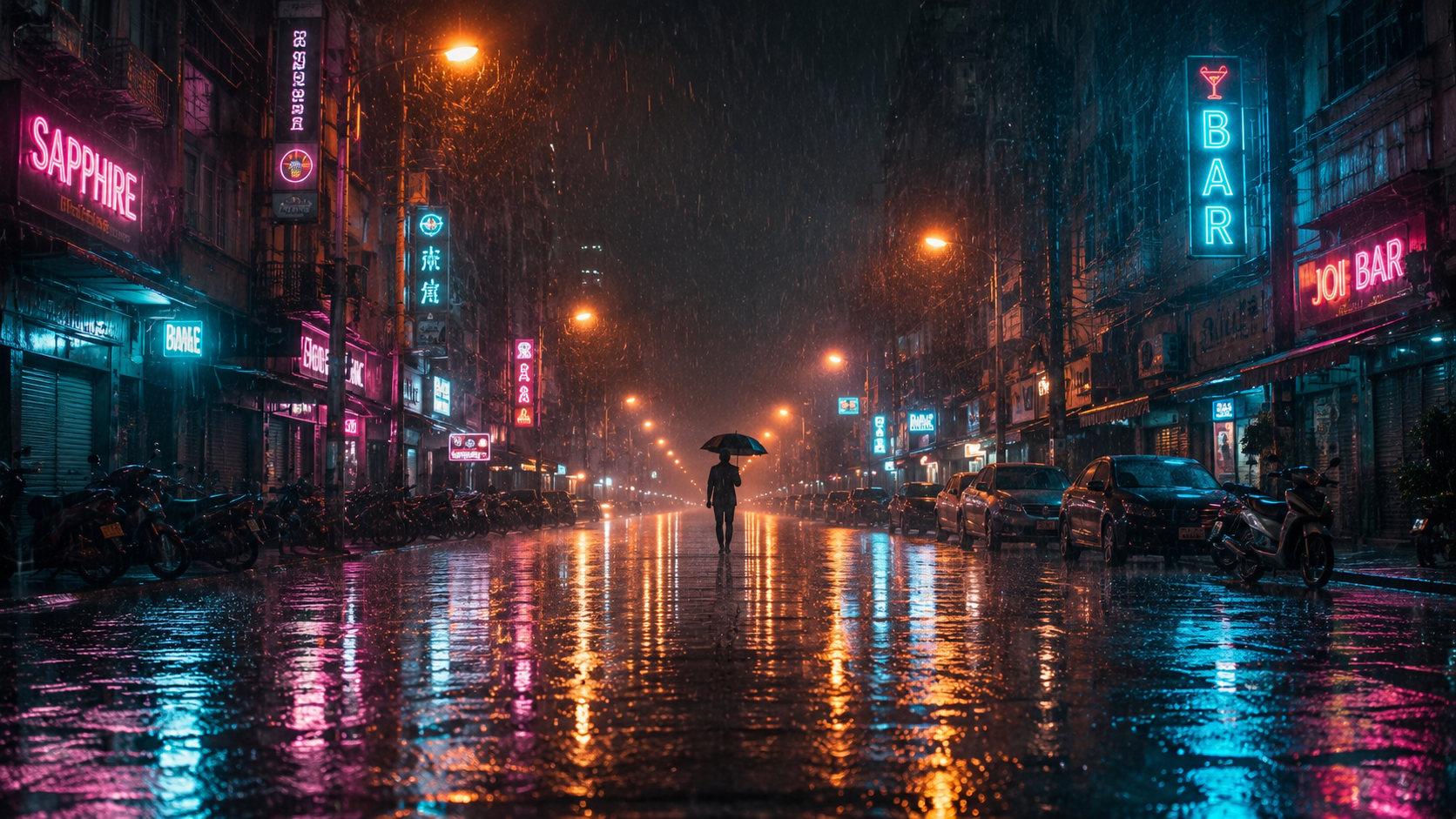
Monsoon rain, lightning, snow, fog and heat haze — weather prompts crafted by a VFX artist, built on the interaction rule that separates real rain from pasted streaks.
50
Prompts
6
Categories
100%
Free
#001 · Rain
Medium shot, 50mm, static: a man standing still in heavy rain at night under a single streetlamp — rain rendered as bright streaks through the cone of light, water sheeting off his shoulders, his breath fogging between drops. He does not move; the rain does everything.
✦ Why this works
Still subject lets rain carry all the motion
Lamp cone makes every drop visible
Breath fog adds cold to the frame
▶ Best for
Emotional low points
Noir beats
Music video imagery
#002 · Rain
Wide shot, 35mm: a Chennai street in full monsoon downpour — auto-rickshaws pushing through ankle-deep water, their headlights doubling in the flooded road, rain bouncing off tarpaulin shop covers, a cyclist with an umbrella threading between them.
✦ Why this works
Monsoon street is rich layered chaos AI handles well
Flooded-road reflections double the light for free
Distinctly Indian frame with global visual appeal
▶ Best for
Monsoon content
Indian city establishers
Documentary beats
#003 · Rain
Close-up, 85mm: rain running down a window at night while a woman watches the street below — droplets merging into racing runnels on the glass, neon from outside refracting through every drop across her face, focus shifting slowly from glass to eyes.
✦ Why this works
Glass runnels are macro rain at its most cinematic
Refracted neon paints the face automatically
Focus shift adds one elegant camera event
▶ Best for
Longing and waiting beats
Interior mood scenes
Rainy-day content
#004 · Rain
Extreme close-up, 100mm macro: the first raindrop of a storm hitting dry dust — the micro-crater, the dust ring puffing outward, a dark wet star spreading on the cracked earth as more drops begin landing around it.
✦ Why this works
First-drop-on-dust is the storm's opening sentence
Crater and dust ring are perfect macro physics
Spreading wet star shows time passing in seconds
▶ Best for
Storm openings
Drought-relief beats
Nature documentaries
#005 · Rain
Low angle, 24mm: children dancing in the season's first rain on a terrace — arms out, faces up, water flying off spinning hands, saturated evening sky behind, a grandmother laughing under the door frame at frame edge.
✦ Why this works
Joy-in-rain is universally shareable emotion
Spinning water arcs give constant motion
Terrace framing is warmly South Asian
▶ Best for
Feel-good content
Monsoon celebration beats
Family brand ads
#006 · Rain
Slow motion, 85mm: rain on a black umbrella from just above — drops bursting on the taut fabric in micro-crowns, water gathering along the ribs and streaming off the eight tips in steady silver threads, city bokeh beyond.
✦ Why this works
Umbrella-top view is a fresh angle on familiar rain
Rib streams turn physics into geometry
Crossover shot with the slow-motion collection
▶ Best for
Mood B-roll
Umbrella product content
Transition beats
#007 · Rain
Tracking shot, 35mm: following feet in sandals splashing through shallow street puddles — each step throwing a fan of water forward, reflections of shop signs shattering and reforming behind every splash, rain hatching the puddle surfaces between steps.
✦ Why this works
Feet-level tracking hides face risk entirely
Shatter-and-reform reflections reward every step
Walking rhythm structures the whole shot
▶ Best for
Journey beats
Monsoon walking B-roll
Opening sequences
#008 · Rain
Wide static, 24mm: rain moving across a valley as a visible curtain — the grey wall of the downpour advancing over green fields, sunlight still on the near hills, the curtain's edge swallowing a lone tree as it arrives.
✦ Why this works
Rain-as-curtain shows weather at landscape scale
Sun-to-storm gradient in one frame
The swallowed tree gives the shot a clock
▶ Best for
Nature epics
Weather documentaries
Scale establishers
#009 · Rain
Close-up, 85mm: two hands sharing one umbrella handle in the rain — fingers adjusting grip, rain streaming off the canopy edge as a beaded curtain around them, warm streetlight glowing through the falling water behind.
✦ Why this works
Hands tell the romance without face risk
Beaded water curtain frames the moment
Warm-through-rain light is instant mood
▶ Best for
Romance beats
Couple content
Wedding films
#010 · Storm
Wide static, 24mm: lightning splitting the sky over a city skyline at night — the bolt branching in a frozen web, every window and wet rooftop flashing white for one frame, then the afterglow fading back to storm-dark as rain continues.
✦ Why this works
Branching bolt is the storm's signature frame
One-frame city flash sells the energy release
Fade-back gives the shot a complete arc
▶ Best for
Storm establishers
Dramatic turning points
Title backgrounds
#011 · Storm
Medium shot, 50mm: palm trees bending in cyclone wind — fronds streaming horizontal, loose leaves tearing away past the lens, horizontal rain hatching the frame, a tin roof sheet lifting and slamming in the background.
Interior shot, 35mm: a power cut as the storm peaks — the room falling dark, then a lightning flash through the window printing the window-frame shadow across the far wall for one instant, rain hammering audible in the dark between flashes.
✦ Why this works
Light-off-flash-dark is a three-beat rhythm AI holds
Window-shadow print is a classic horror image
Interior framing needs no exterior consistency
▶ Best for
Horror beats
Storm interiors
Tension scenes
#013 · Storm
Slow motion, 85mm: a lightning strike hitting a lone tree on a hill — the flash overexposing the frame, bark and steam exploding from the trunk, embers drifting down through the rain as the darkness returns.
✦ Why this works
Strike-on-tree gives lightning a physical consequence
Overexposure flash is honest camera behaviour
Embers-in-rain is a rare, striking combination
▶ Best for
Storm climaxes
Nature power beats
Metaphor shots
#014 · Storm
POV through a car windscreen in a storm at night — wipers losing the fight, each sweep clearing a half-second of taillights ahead before the water wall returns, lightning strobing the whole highway white twice.
✦ Why this works
Losing-wipers POV creates instant tension
Taillight glimpses ration the visibility
Lightning strobes punctuate the rhythm
▶ Best for
Driving tension beats
Storm journey scenes
Thriller sequences
#015 · Storm
Wide shot, 35mm: a fishing boat riding storm swells — the bow climbing a grey wall of water, spray blasting over the deck, the kerosene lamp on the mast swinging wild arcs of light through the rain.
✦ Why this works
Bow-climb reads scale without complex water sim
Swinging lamp adds a moving light source
Callback to the classic fishing-boat scene
▶ Best for
Sea storm beats
Survival scenes
Man-vs-nature content
#016 · Storm
Time-compressed static wide, 24mm: storm clouds boiling over a plain — cumulonimbus towers rolling and climbing in accelerated motion, internal lightning pulsing inside the cloud mass like a heartbeat, the shadow racing across the fields below.
✦ Why this works
Boiling clouds are AI's best time-lapse subject
Internal pulses light the cloud from within
Racing shadow connects sky to ground
▶ Best for
Timelapse content
Storm build-ups
Documentary transitions
#017 · Storm
Close-up, 85mm: hail beginning — first stones bouncing off a car bonnet in sharp white hops, denting rhythm building, a wing mirror collecting a small drift, breath-fog rising from the warm metal between impacts.
✦ Why this works
Bouncing hail is crisp readable physics
Building rhythm gives the shot an arc
Rare weather content with search demand
▶ Best for
Extreme weather beats
Insurance-ad drama
News-style inserts
#018 · Snow
Slow motion close-up, 100mm: snowflakes landing on dark wool — individual crystals holding their geometry for a breath before melting into droplets, more flakes drifting through the shallow focus behind, cold blue afternoon light.
✦ Why this works
Crystal-to-droplet is winter's best macro story
Dark wool makes every flake legible
Shallow drift adds gentle depth
▶ Best for
Winter mood beats
Fashion content
Season transitions
#019 · Snow
Wide static, 24mm: first snow falling on a Himalayan village at dusk — flakes drifting past warm window lights, smoke rising straight from chimneys into still air, the ground slowly turning white as the shot holds.
✦ Why this works
Warm-windows-cold-air contrast is instant coziness
Slow whitening shows time within one shot
Himalayan setting suits Indian travel content
▶ Best for
Travel content
Winter establishers
Calm ambience videos
#020 · Snow
Medium shot, 50mm: breath fog in freezing air — a woman exhaling slowly, the vapour blooming, curling and thinning in a shaft of low winter sun, frost glittering on her scarf fibres, eyes bright above it.
✦ Why this works
Breath vapour is cold made visible
Backlit bloom is a reliable AI render
Scarf frost adds macro texture
▶ Best for
Winter portraits
Cold-open beats
Seasonal ads
#021 · Snow
Tracking shot, 35mm: boots breaking fresh snow — each step sinking with a visible compression ring, powder kicking forward off the toe, the untouched field ahead and a single line of prints stretching behind.
✦ Why this works
Sink-and-kick is satisfying repeatable physics
Print trail tells the journey in one frame
Feet-level framing avoids face risk
▶ Best for
Journey beats
Winter adventure content
Solitude imagery
#022 · Snow
Slow motion, 85mm: a snowball impact on a coat shoulder — the ball bursting into a powder halo, fragments spinning off with visible rotation, the target's laughing recoil blurring softly behind the frozen debris.
✦ Why this works
Powder burst is a joyful, safe impact
Rotating fragments prove the slow motion
Laughing recoil keeps the tone warm
▶ Best for
Winter fun content
Family beats
Playful ads
#023 · Snow
Extreme close-up, 100mm macro: frost growing across a window pane — feather crystals extending in accelerated motion from the corner, branching and interlocking, warm bokeh of an interior lamp glowing through the thickening ice.
✦ Why this works
Frost growth is a mesmerising time compression
Warm-through-ice is a beautiful colour story
Macro subject with zero consistency risk
▶ Best for
Winter transitions
Ambient loops
Title backgrounds
#024 · Snow
Wide shot, 35mm: a blizzard white-out — a figure in a red jacket leaning into horizontal snow, visibility collapsing and returning in waves, the red the only colour surviving as the world strobes white around it.
✦ Why this works
Single red element anchors the white chaos
Visibility waves create rhythm from randomness
Extreme weather with strong search demand
▶ Best for
Survival beats
Extreme weather content
Determination metaphors
#025 · Snow
Static close-up, 85mm: an icicle dripping in the first thaw — meltwater gathering at the tip, each drop stretching, releasing, and flashing in the sun on its way down, the icicle visibly thinning against warming blue sky.
✦ Why this works
Drip cycle is a perfect loopable rhythm
Thinning icicle shows the season turning
Sun-flash drops link to the slow-motion collection
▶ Best for
Season transitions
Spring beats
Calm ambience content
#026 · Snow
Aerial static, 24mm: a snow-covered pine forest at dawn — trees loaded white, one tree releasing its snow in a soft avalanche that cascades branch to branch, powder haze drifting through the first gold light.
✦ Why this works
Branch-cascade is one elegant chain event
Gold-on-white dawn palette is premium
Aerial distance removes all detail risk
▶ Best for
Nature epics
Winter drone-style content
Meditative openers
#027 · Fog
Wide shot, 35mm: a figure emerging from thick fog on an empty road — first a darker smudge, then a silhouette, then a person, the fog peeling off their shoulders in wisps as they resolve, streetlamp halos hanging in the murk behind.
✦ Why this works
Three-stage resolve is a built-in reveal arc
Fog hides detail until the model must commit
Lamp halos decorate the depth
▶ Best for
Mystery reveals
Thriller entrances
Music video beats
#028 · Fog
Static wide, 24mm: morning mist lying in layers over paddy fields — the bands of white hanging between palm rows, a farmer walking chest-deep through the top layer, the sun a pale disc burning through slowly.
✦ Why this works
Layered mist over paddies is signature South Indian dawn
Chest-deep walk shows the mist's true depth
Burning-through sun gives the shot a clock
▶ Best for
Rural establishers
Documentary beats
Meditative openers
#029 · Fog
Tracking shot, 35mm: headlights carving twin tunnels through night fog — the beams rendered as solid volumetric cones, moths flickering through them, the road appearing only metres ahead as the camera glides behind the car.
✦ Why this works
Volumetric cones are fog's cinematic payoff
Moths add life to the light
Limited visibility creates automatic suspense
▶ Best for
Night journey beats
Thriller driving scenes
Horror approaches
#030 · Fog
Close-up, 85mm: fog condensing on skin — micro-droplets gathering on eyelashes and brow, the exhale pushing a clear pocket into the mist that closes again, cold flat light with no shadows anywhere.
✦ Why this works
Lash droplets are intimate weather detail
Breath-pocket is a subtle living interaction
Shadowless light is honest fog behaviour
▶ Best for
Atmospheric portraits
Cold-open beats
Mood pieces
#031 · Fog
Static wide, 24mm: a temple gopuram rising out of dawn mist — only the top tiers visible above the white sea, carved figures catching first light, a flock of pigeons erupting from a niche and vanishing into the murk below.
✦ Why this works
Floating-tower composition is instantly epic
Carving detail rewards the light
Indian landmark imagery with global reach
▶ Best for
Heritage content
Travel films
Spiritual openers
#032 · Fog
Slow push-in, 50mm: sea fog rolling over a harbour wall — the white mass pouring like liquid over the stone, swallowing bollards one by one, a foghorn's implied blast marked by a slow pulse in the mist density.
✦ Why this works
Fog-as-liquid pour is a striking rare render
Bollard-by-bollard swallow shows advance rate
Density pulse implies sound in a silent medium
▶ Best for
Coastal mood beats
Mystery establishers
Maritime content
#033 · Fog
Medium shot, 50mm: steam and mist mixing above a roadside chai stall at dawn — the kettle's white column rising into the blue morning haze, the vendor a warm silhouette against the stove glow, cups steaming on the counter.
✦ Why this works
Steam-into-mist is a two-temperature story
Stove glow warms an otherwise cold palette
Beloved everyday Indian scene
▶ Best for
Street food content
Morning routine beats
Chai brand ads
#034 · Fog
Aerial static, 24mm: a bridge with only its towers above the fog — the deck and cables submerged in the white layer, tower aircraft lights blinking, the fog surface drifting slowly like a second sea beneath the real sky.
✦ Why this works
Towers-above-fog is the iconic aerial fog frame
Blinking lights add scale and life
Drifting fog surface keeps the still frame alive
▶ Best for
City establishers
Epic scale beats
Title imagery
#035 · Wind
Medium shot, 50mm: wind arriving through a wheat field — the gust rendered as a visible wave of bending stalks racing toward and past the camera, seed husks lifting into the backlight, the field settling behind it.
✦ Why this works
Traveling gust wave makes wind visible
Pass-the-camera path creates immersion
Settling tail completes the event
▶ Best for
Nature beats
Freedom metaphors
Rural establishers
#036 · Wind
Close-up, 85mm: laundry on a rooftop line in strong wind — a white bedsheet cracking like a sail, clothespins straining, one sock tearing free and tumbling away over the city, golden evening light through the fabric.
✦ Why this works
Cracking sheet is playful readable physics
The escaping sock is a story in one object
Backlit fabric glows for free
▶ Best for
Everyday life beats
Comedy inserts
Wind transitions
#037 · Wind
Wide shot, 35mm: heat haze over an empty highway at noon — the asphalt shimmering, a distant truck arriving as a wobbling mirage that slowly solidifies, a plastic bag spiralling in a dust devil at the road's edge.
✦ Why this works
Mirage-to-solid is heat's best visual trick
Dust devil adds motion to emptiness
Harsh-noon palette is a distinct mood
▶ Best for
Desert and summer beats
Road movie establishers
Thriller isolation
#038 · Wind
Slow motion, 85mm: a sun shower — rain falling through full sunlight, every drop a falling spark, a woman laughing with a newspaper held over her head, wet pavement flashing gold around her feet.
✦ Why this works
Backlit sun-shower drops are pure sparkle
Newspaper improvised umbrella adds charm
Rare weather with high visual joy
▶ Best for
Feel-good beats
Romance scenes
Seasonal ads
#039 · Wind
Static wide, 24mm: a double rainbow after the storm — full arc over wet green fields, the fainter mirror bow above it, storm clouds retreating dark on the right while washed sunlight owns the left of frame.
✦ Why this works
Full arc composition is the classic payoff frame
Dark-to-light split narrates the storm's exit
Double bow adds the rare-sighting thrill
▶ Best for
Storm resolutions
Hope beats
Nature payoffs
#040 · Wind
Close-up, 85mm: a paper kite fighting a gusty sky — the paper flexing and booming, the string cutting a taut line across racing clouds, the kite snapping through figure-eights against the blue.
✦ Why this works
Flex-and-boom shows gusts through one object
Figure-eights are readable repeatable motion
Kite imagery lands across South Asia
▶ Best for
Festival content
Childhood beats
Freedom metaphors
#041 · Wind
Medium shot, 50mm: the moment before the storm — dead-still market street, then the first gust arriving: awnings snapping, dust and leaves spiralling up, a vendor grabbing his toppling display, everyone's clothes suddenly alive.
✦ Why this works
Still-to-chaos flip is a one-shot story
Multiple small reactions sell the gust
Pre-storm tension every editor needs
▶ Best for
Storm build-ups
Disaster forewarnings
Tension beats
#042 · Wind
Slow motion, 100mm: golden hour dust in the air after cattle pass — the suspended cloud hanging in the low sun, individual motes drifting and glinting, a bell's implied chime marked by one slow eddy through the glow.
✦ Why this works
Suspended dust is golden hour's richest texture
Motes-in-light is a reliable premium render
Rural Indian evening in one frame
▶ Best for
Village establishers
Nostalgia beats
Documentary gold
#043 · Mood
Interior close-up, 85mm: a chai glass steaming by a rain-streaked window — condensation on the glass mirroring the rain outside, steam curling into the grey window light, a thumb wiping one clear stripe across the fog on the pane.
✦ Why this works
Inside-outside water echo is quiet poetry
Thumb-wipe is one perfect human beat
Peak cozy-content imagery
▶ Best for
Rainy-day mood content
Chai and café beats
Comfort ads
#044 · Mood
Static wide interior, 35mm: a power-cut evening during rain — a family around a single candle, shadows breathing on the walls, rain silver on the window behind them, a hand cupping the flame as someone passes.
✦ Why this works
Single-source candle light is dramatic and simple
Breathing shadows keep the still frame alive
Universally nostalgic monsoon memory
▶ Best for
Family beats
Nostalgia content
Warm drama scenes
#045 · Mood
Close-up, 85mm: rain heard before seen — a ceiling fan slowing to a stop as the power dips, curtains beginning to stir, the first drops appearing on the window behind them, room light shifting from warm to storm-grey.
✦ Why this works
Fan-stop is the subcontinent's storm alarm
Light shift narrates weather without exteriors
Three small events chain into atmosphere
▶ Best for
Scene transitions
Monsoon interiors
Quiet tension
#046 · Mood
Medium shot, 50mm: a dog watching rain from a doorway — chin on paws at the threshold, rain beading and dripping off the door frame inches from its nose, ears flicking at off-screen thunder.
✦ Why this works
Threshold framing splits dry and wet worlds
Ear flicks give the still shot a pulse
Animal-plus-weather is shareability gold
▶ Best for
Feel-good content
Rainy mood beats
Pet brand ads
#047 · Mood
Overhead static, 100mm: rain circles on a pond lotus leaf — drops beading and rolling on the hydrophobic surface, merging into one large trembling bead that finally tips off the leaf's edge, ripples answering below.
✦ Why this works
Hydrophobic beading is nature's best water trick
Merge-and-tip gives the shot a story
Meditative loop with zero risk
▶ Best for
Calm ambience loops
Nature inserts
Meditation content
#048 · Mood
Slow push-in, 50mm: an empty classroom during rain — water shadows from the window rippling across empty benches, one forgotten notebook fluttering its pages in the window draft, chalk lesson half-erased on the board.
✦ Why this works
Water-shadow ripple paints the whole room
Fluttering notebook adds a ghost of life
Nostalgia setting with story questions built in
▶ Best for
Nostalgia beats
School memory content
Melancholy scenes
#049 · Mood
Close-up, 85mm: writing in a fogged window — a finger drawing letters in the condensation, each stroke revealing the rainy street beyond in a clear line, the letters beginning to weep drips as the shot ends.
✦ Why this works
Finger-writing reveal is interactive weather
Weeping letters add a melancholy clock
The written word slot makes it customisable
▶ Best for
Romance beats
Title reveals
Emotional inserts
#050 · Mood
Wide static, 24mm: after the rain — a flooded street at blue hour turned into a perfect mirror, shop neon and one walking silhouette doubled in the still water, a single auto passing and shattering the reflection into ribbons before it heals.
✦ Why this works
Mirror-street is post-rain's signature gift
Shatter-and-heal gives stillness one event
Blue-hour neon palette is premium mood
▶ Best for
Scene enders
Night mood beats
Music video frames
About These Rain & Weather Prompts
Weather is the fastest way to give an AI shot a mood — the same street reads as romance in a sun shower, menace in fog, and melancholy in steady rain. It is also one of the most reliable things AI video renders, because weather is texture and light rather than anatomy: no faces to keep consistent, no hands to draw. A well-prompted storm frame can pass for real footage more easily than almost any other AI shot.
But weather prompts fail in one specific, predictable way: rain that touches nothing, snow that never settles, wind that moves no fabric. The fix is the interaction rule explained below — every prompt in this collection describes the weather meeting the world: crowns bursting on glass, water sheeting off shoulders, gust waves racing through wheat, frost growing crystal by crystal.
The 50 prompts span six families — rain, storms and lightning, snow and cold, fog and mist, wind-heat-sun, and interior weather moods — with a deliberate share of monsoon, chai-stall and terrace imagery for creators telling South Asian stories, alongside the universal cinematic staples.
How to Use These Prompts
1
Copy any prompt
Browse the collection and find a prompt that matches the type of shot you need. Click the Copy button to copy the full prompt to your clipboard.
2
Open your AI video tool
Open Kling AI, Runway, Sora, or any other AI video generator you use. Navigate to the text prompt input field.
3
Paste and adjust
Paste the prompt into the input field. You can use it exactly as written, or replace the generic scene description with your specific subject — for example, replace "a lone warrior" with "a detective in a rainy alley".
4
Generate and review
Generate the video clip. If the result does not match what you expected, try adjusting the lighting description or camera movement in the prompt and generate again.
Tips for Best Results
✦
Follow the interaction rule: never prompt weather alone — prompt weather touching things. "Heavy rain" is weak; "rain sheeting off his shoulders, drops bursting on the wet stone" renders.
✦
Wet the ground. "Rain-slicked asphalt reflecting every light" doubles your production value and instantly sells the scene — a dry-floored rain shot reads as fake no matter how good the streaks are.
✦
Match weather across every shot of a scene: same intensity, same grey light, same soaked surfaces. Treat it as a Fixed Element, written identically into every prompt.
✦
Fog and snow are the safest weathers for character shots — they soften detail and hide small inconsistencies — while backlit rain and lightning are the most dramatic but least forgiving. Choose the weather for the job.
Making AI Rain Look Real: The Interaction Rule
The most common AI rain failure is rain that falls but touches nothing — streaks pasted over a dry-looking scene. Real rain is defined by its interactions, and the model only renders those if the prompt demands them. Every rain prompt on this page follows the interaction rule: name at least two of — water sheeting off shoulders, drops bursting into micro-crowns, runnels racing on glass, puddles doubling every light source, steam rising from warm surfaces, fabric darkening as it soaks.
Wet ground is half the shot. A rain scene where the ground stays matte reads as fake instantly. Always specify the surface state: "rain-slicked asphalt reflecting the neon," "flooded street turned to a mirror," "wet stone glistening." Reflections are free production value — they double every light in your scene and hide small inconsistencies in the process.
Weather is a Fixed Element. If your scene spans multiple shots, the rain's intensity, the light's greyness and the wetness of every surface must match across all of them — one dry-pavement shot breaks the entire sequence. Lock the weather once ("steady heavy rain, overcast flat light, all surfaces soaked and reflective") and inject it into every prompt — our free AI Scene Builder does exactly this through its Fixed Elements field.
Frequently Asked Questions
Why does AI rain often look fake or pasted-on?
Because the prompt asked for rain but not for its consequences. Models render "rain" as streaks unless you describe the interactions — drops bursting into crowns, water running off surfaces, clothes darkening, puddles reflecting light. Add two or three interactions and the same scene transforms. This is the interaction rule every prompt on this page is built around.
Can AI video do lightning realistically?
Yes — with two tricks. First, prompt the consequence, not just the bolt: the one-frame overexposure, every wet surface flashing white, the window-frame shadow printed on a wall. Second, keep one strike per shot; multiple strikes tend to merge into flicker. For storm sequences, cut separate strike shots together in editing.
How do I keep the weather consistent across a multi-shot scene?
Write the weather as a locked block — "steady heavy rain, overcast flat grey light, all surfaces soaked and reflective" — and paste it identically into every shot prompt. One shot with dry pavement or sunny light breaks the whole sequence. Our free AI Scene Builder automates this with its Fixed Elements field, which injects your weather description into every shot.
Which AI tool handles weather best?
Kling AI currently leads on water physics — rain interactions, puddle reflections and wet-surface rendering — which is why most prompts here are tuned for it. Runway excels at fog volumetrics and slow-motion droplets. All 50 prompts use standard cinematography language and work across Kling, Runway, Sora, Pika and Hailuo.
Lock your weather across a whole scene
Scene Builder Fixed Elements inject your rain, light and wet surfaces into every shot automatically.